Extension Options Guide
A complete reference to all settings and configuration options in the Illuminate Chrome Extension.
Language Settings
Configure source and target languages for OCR and translation.
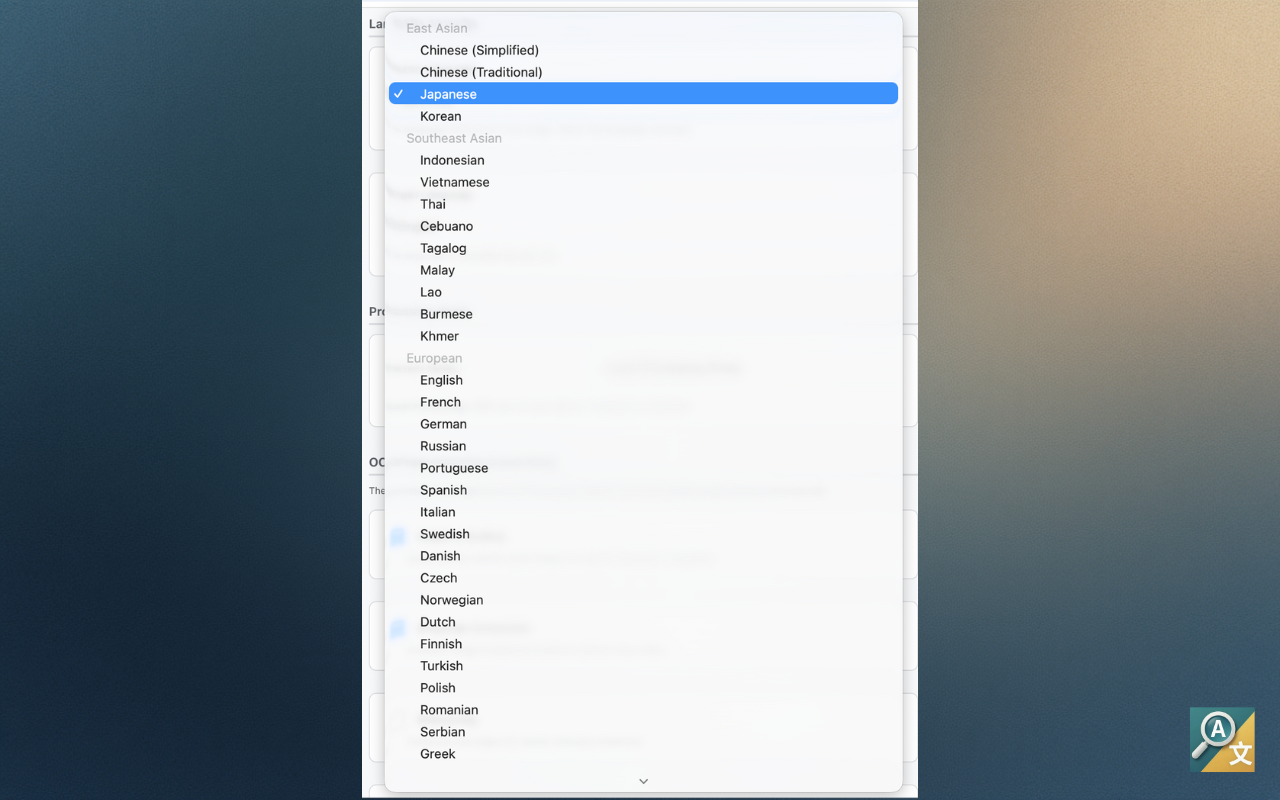
Source Language Free
The language of text in your images. Select "Auto" for cloud processing (Pro only) or manually choose from 73+ languages for local OCR.
Target Language Free
The language to translate extracted text into. Choose from 32 languages including English, Chinese, Japanese, Korean, French, German, and more.
Auto Detection
Auto detection of source language is available with Cloud Processing (Pro). Local Mode requires manual language selection.
Processing Mode
Choose how OCR and translation are performed.
Local Processing Free
OCR runs entirely in your browser using Tesseract.js WebAssembly. No internet required, no credits consumed. Text extraction only, no translation.
Cloud Processing Pro
High-accuracy OCR + translation via AI-powered API. Requires Pro subscription. Consumes 1 credit per image.
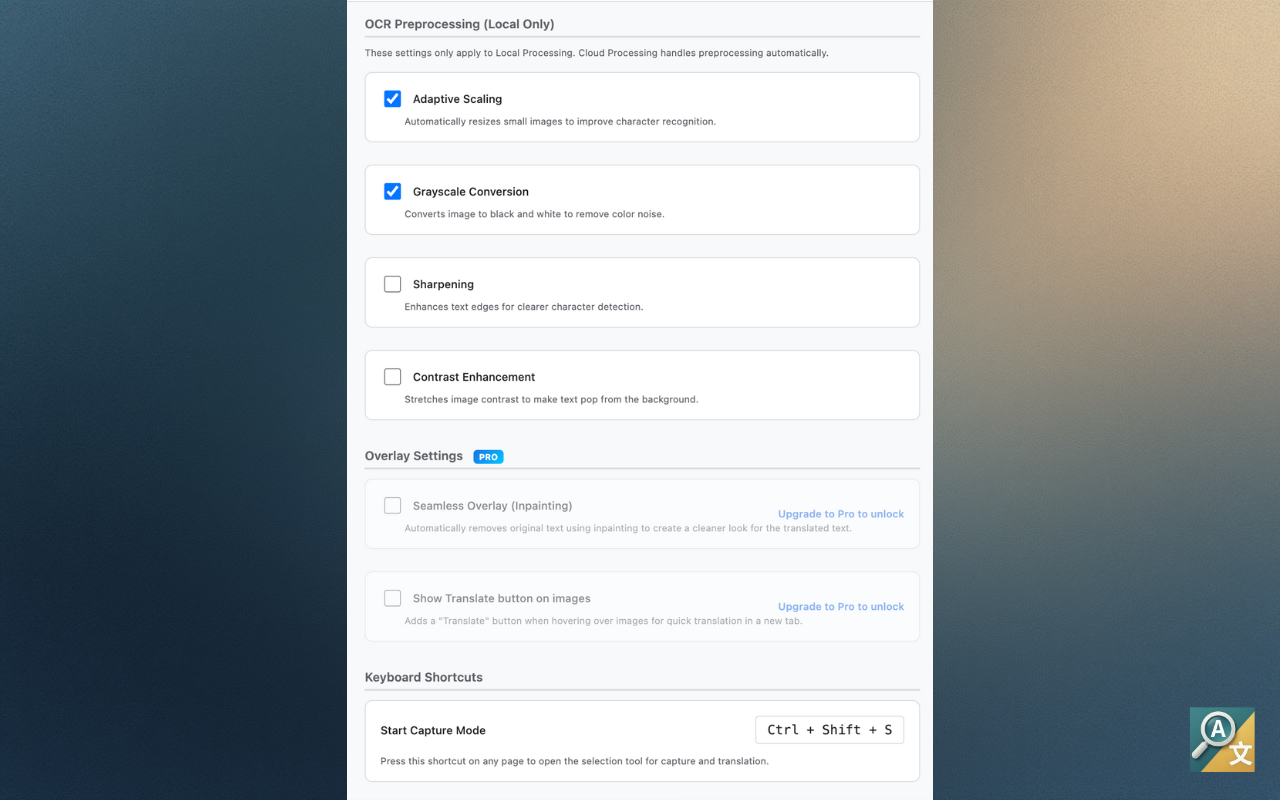
OCR Preprocessing Free
Fine-tune image preprocessing for better OCR accuracy with Local Mode.
Adaptive Scaling
Automatically resizes small images to improve character recognition. Recommended for screenshots with small text.
Grayscale Conversion
Converts images to black and white to remove color noise. Improves accuracy for text on colored backgrounds.
Sharpening
Enhances text edges for clearer character detection. Helps with slightly blurry or low-resolution images.
Contrast Enhancement
Stretches image contrast to make text stand out from background. Useful for images with low contrast.
Tip
All preprocessing options are enabled by default for best results. Disable individual options only if you notice issues with specific image types.
Overlay Settings Pro
Configure how translated overlays appear on images.
Seamless Overlay (Inpainting)
Automatically removes original text using patch-based texture synthesis before adding translations. Creates clean, professional-looking results.
Show Translate Button on Images
Displays a "Translate" button when hovering over any image on a webpage. Click to translate the image in a new tab.
Keyboard Shortcuts
Start Capture Mode
Ctrl + Shift + S
Opens the selection tool for capturing and translating any area on your screen. Works on any webpage.
Subscription & Credits
Manage your Pro subscription and view credit usage.
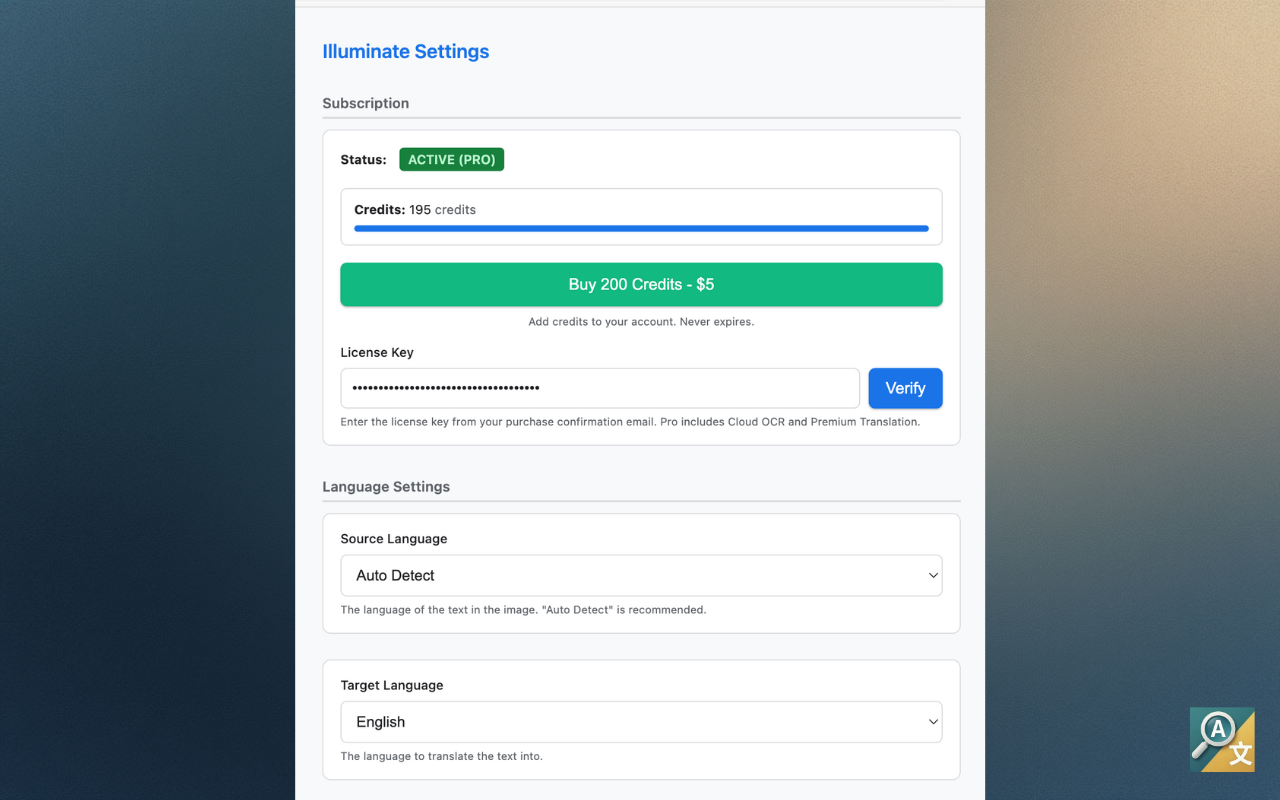
License Key
Enter your Polar license key to activate Pro features. Find it in your purchase confirmation email.
Credit Balance
Pro users get 200 credits per month. Pro is currently $0—enjoy free AI translations while the offer lasts!
Usage Tracking
View current period usage and remaining credits. Resets automatically at the start of each billing period.
Reset Warnings
Restore any previously dismissed paywall warnings or dialogs if needed.
Free vs Pro Comparison
| Feature | Free | Pro |
|---|---|---|
| Local OCR (Tesseract.js) | ||
| Cloud OCR (AI-powered) | ||
| Translation | ||
| OCR Preprocessing Controls | ||
| Seamless Overlay (Inpainting) | ||
| Image Hover Translate Button | ||
| Monthly Credit Quota | None | 200 credits |
| Credit Top-ups |